Hacking for Dummies: Test your firewall rules
Before someone else hacks your firewall, test your firewall rules during the self-hacking process to test your network's security.
 |
An excerpt from Chapter 9 - Network Infrastructure in "Hacking for Dummies, 2nd edition" written by Kevin Beaver and published by Wiley Publishing. |
As part of your ethical hacking, you can test your firewall rules to make sure they're working like they're supposed to. A few tests can verify that your firewall actually does what it says it's doing. You can connect through it on the ports you believe are open, but what about all the other ports that can be open and shouldn't be?
Some security-assessment tools can not only test for open ports, but also determine whether traffic is actually allowed to pass through the firewall.
All-in-one tools
All-in-one tools aren't perfect, but their broad testing capabilities make the network scanning process a lot less painful and can save you tons of time! Their reporting is really nice, too, especially if you will show your test results to upper management.
Nessus, QualysGuard, and GFI LANguard Network Security Scanner provide similar results. Figure 9-11 shows partial output from LANguard. It identifies open ports on the test network and presents information on SNMP, operating system information, and special alerts to look for.
Figure 9-11:
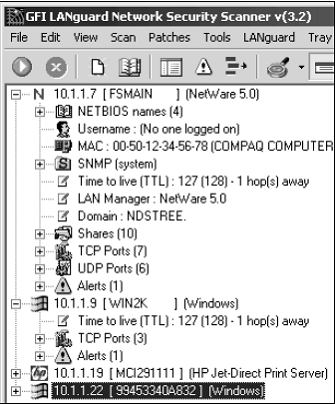
Information gathered from a network scan using LANguard Network Security Scanner.
You can use LANguard Network Security Scanner and QualysGuard to find operating system vulnerabilities and patches that need to be applied. Pretty slick! I'll show you more on this in Chapter 11 when I talk about hacking Windows.
Netcat
Netcat can test certain firewall rules without having to test a production system directly. For example, you can check whether the firewall allows port 23 (telnet) through. Follow these steps to see whether a connection can be made through port 23:
- Load Netcat on a client machine inside the network.
This allows you to test from the inside out. - Load Netcat on a testing computer outside the firewall.
This allows you to test from the outside in. - Enter the Netcat listener command on the client (internal) machine with the port number you're testing.
For example, if you're testing port 23, enter this command:
nc –l –p 23 cmd.exe - Enter the Netcat command to initiate an inbound session on the testing (external) machine. You must include the following information:
-
- The IP address of the internal machine you're testing
- The port number you're testing
For example, if the IP address of the internal (client) machine is 10.11.12.2 and the port is 23, enter this command:
nc –v 10.11.12.2 23 -
If Netcat presents you with a new command prompt (that's what the cmd.exe is for in Step 3) on the external machine, it means that you connected and are now executing commands on the internal machine! This can serve several purposes, including testing firewall rules and — well, uhhhmmm -- executing commands on a remote system!
@38614 A neat commercial tool that specializes in evaluating the performance of packet filtering devices, such as firewalls, is Traffic IQ Pro by Karalon (www.karalon.com). With this tool, shown in Figure 9-12, you can connect one NIC on your testing machine to your firewall's internal segment and a second NIC to your firewall's external segment or DMZ and generate generic and/or malicious traffic see if your firewall is doing what it says it's doing. Such a test is great for those annual firewall "rulebase audits" mandated in many organizations.
An alternative firewall rulebase testing tool for the UNIX platform is Firewalk (www.packetfactory.net/firewalk).
Countermeasures against firewall attacks
The following countermeasures can prevent a hacker from testing your firewall:
- Limit traffic to what's needed.
Set rules on your firewall (and router, if needed) to pass only traffic that absolutely must pass. For example, have rules in place that allow HTTP inbound to an internal Web server and outbound for external Web access. This is the best defense against someone poking at your firewall. - Block ICMP to help prevent abuse from some automated tools, such as Firewalk.
- Enable stateful packet inspection on the firewall, if you can. It can block unsolicited requests.
Figure 9-12:
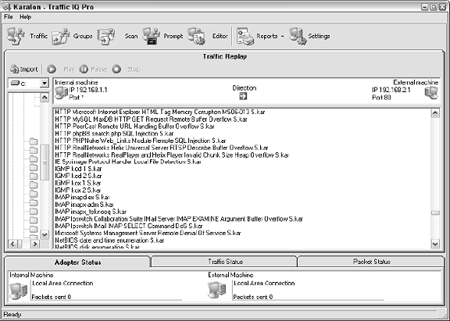
Traffic IQ Pro for generating packets and analyzing a firewall's capabilities.